

Popular
Memory Card Installation
- 100 views
Turn off system from power switch and unplug from the wall, as explained in the “Remove Hazardous Energy” section of the Owner’s Manual.
- Open the electrical cabinet by removing the top plate screws.
- Locate the card slot on the side of the control unit.
- Top left corner when viewing from the back of the unit. There is a label on the back of the control unit that shows the location of the card slot, and orientation to insert the card.
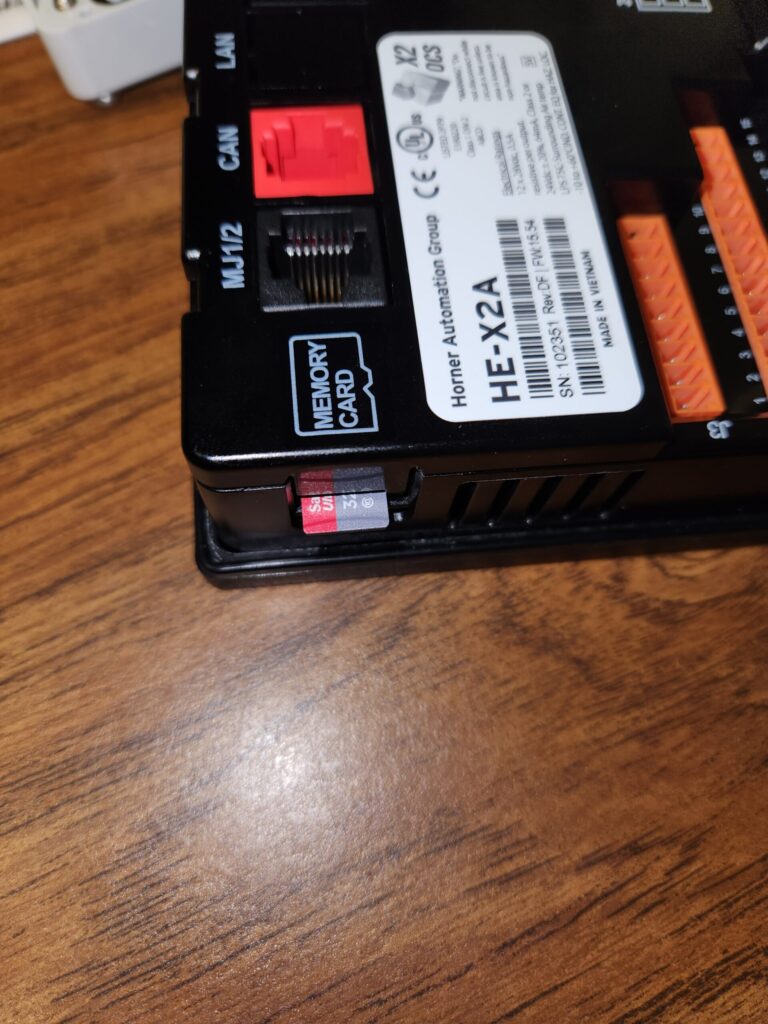
- Be careful not to touch the gold contacts when handling the card.
- Insert the card into the slot with the contact facing toward the screen.
- When the card is about halfway in, you should feel slight resistance until it clicks into place.
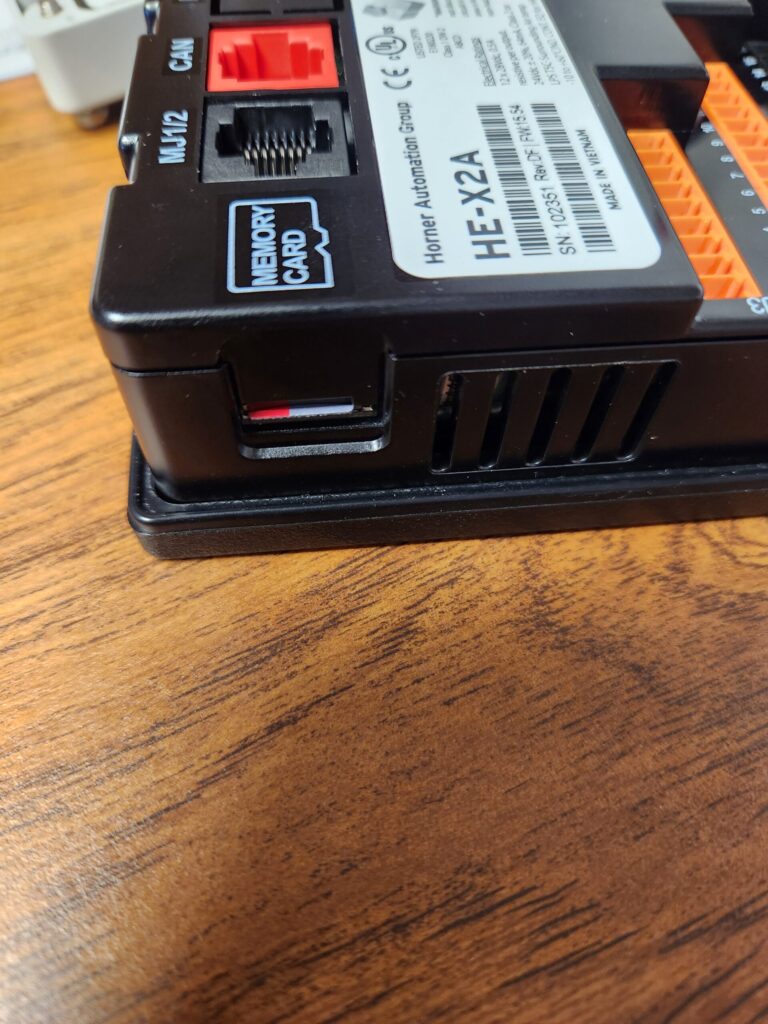
- Close the electrical cabinet.
- Plug in and turn the machine back on.
- After the machine reaches the fault screen “No user screens to display” or the home screen, press the up and down arrow simultaneously.
- From the System Menu page use the arrow keys to scroll down to Fail-Safe System and press enter.
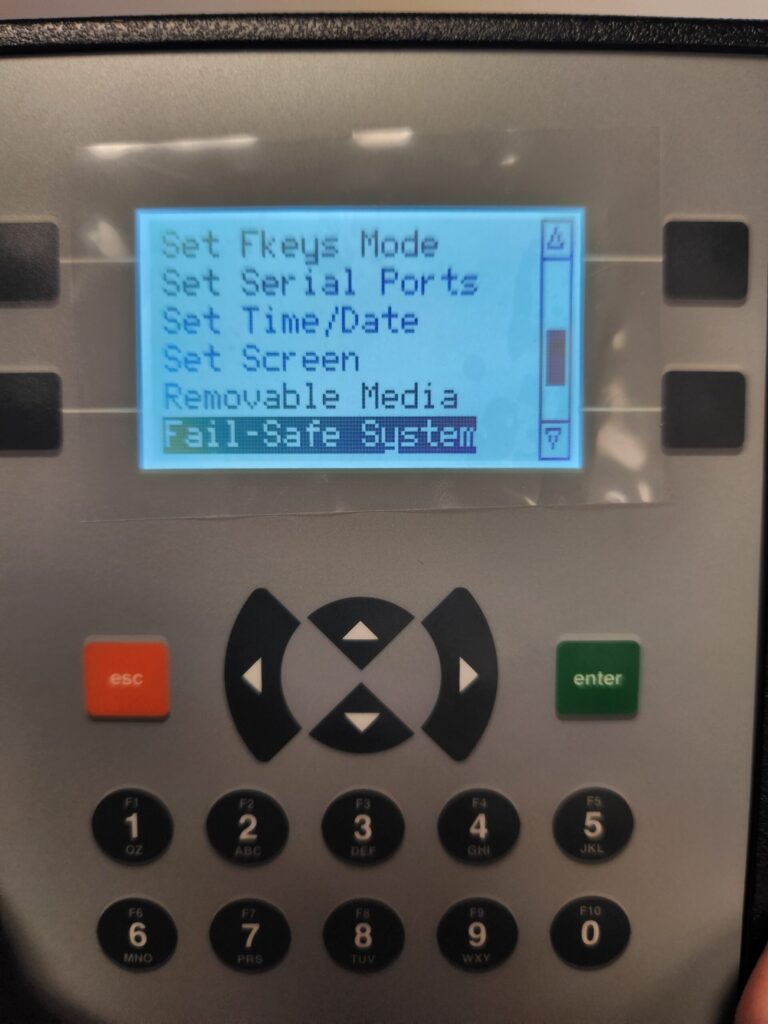
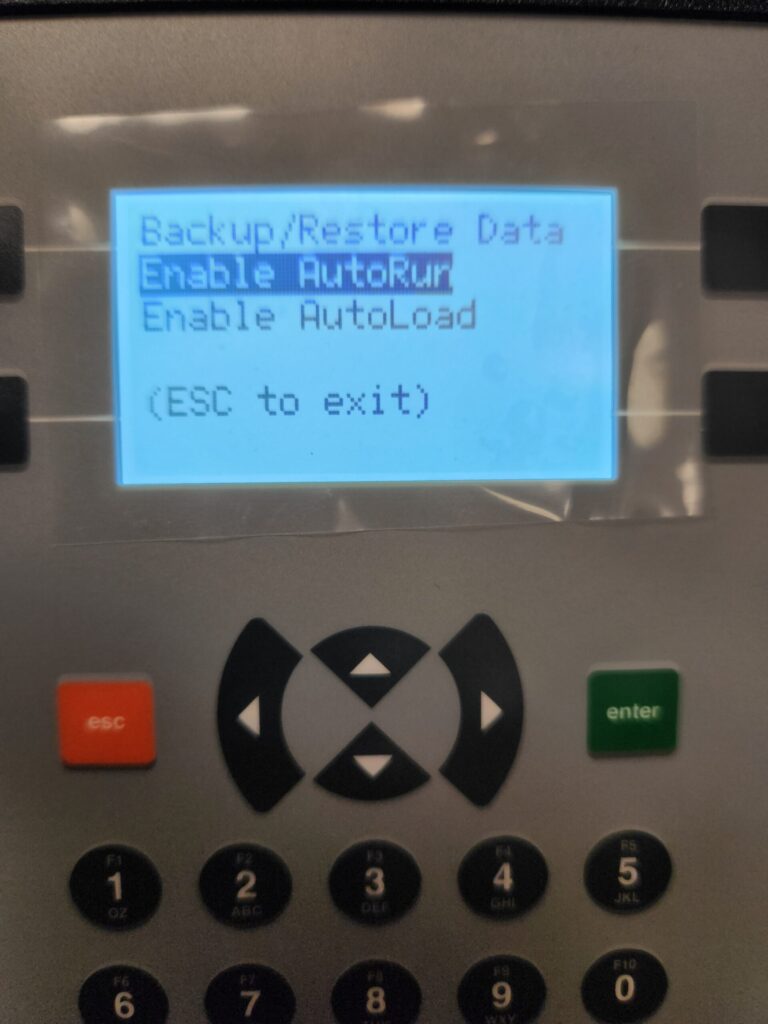
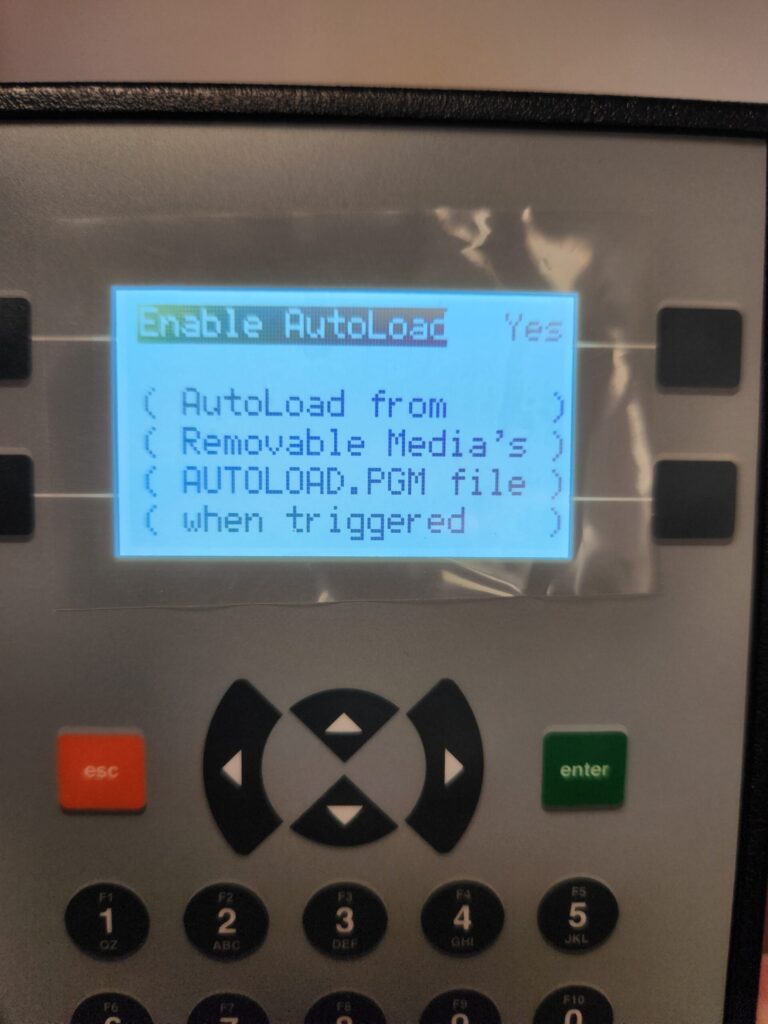
- Press enter to select Enable AutoRun, and use the arrow keys to change from “No” to “Yes”. Press enter to confirm selection, then escape to go back to the previous screen.
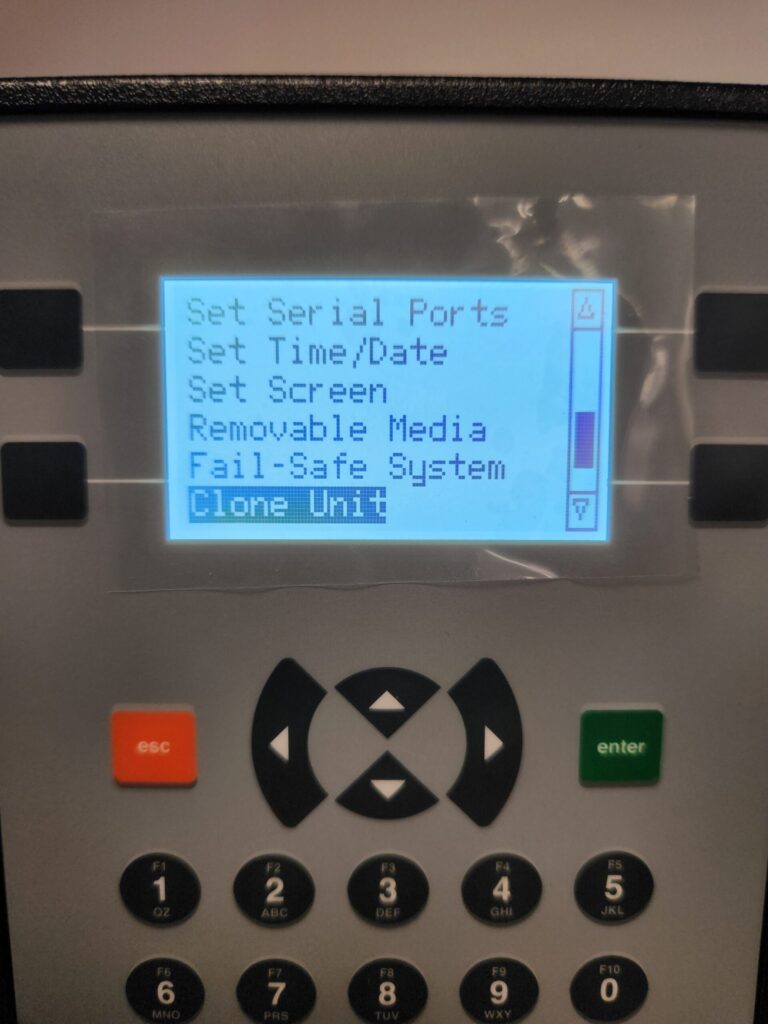
- From the System Menu page use the arrow keys to scroll down to Clone Unit and press enter.
- From the System Menu page use the arrow keys to scroll down to Clone Unit and press enter.
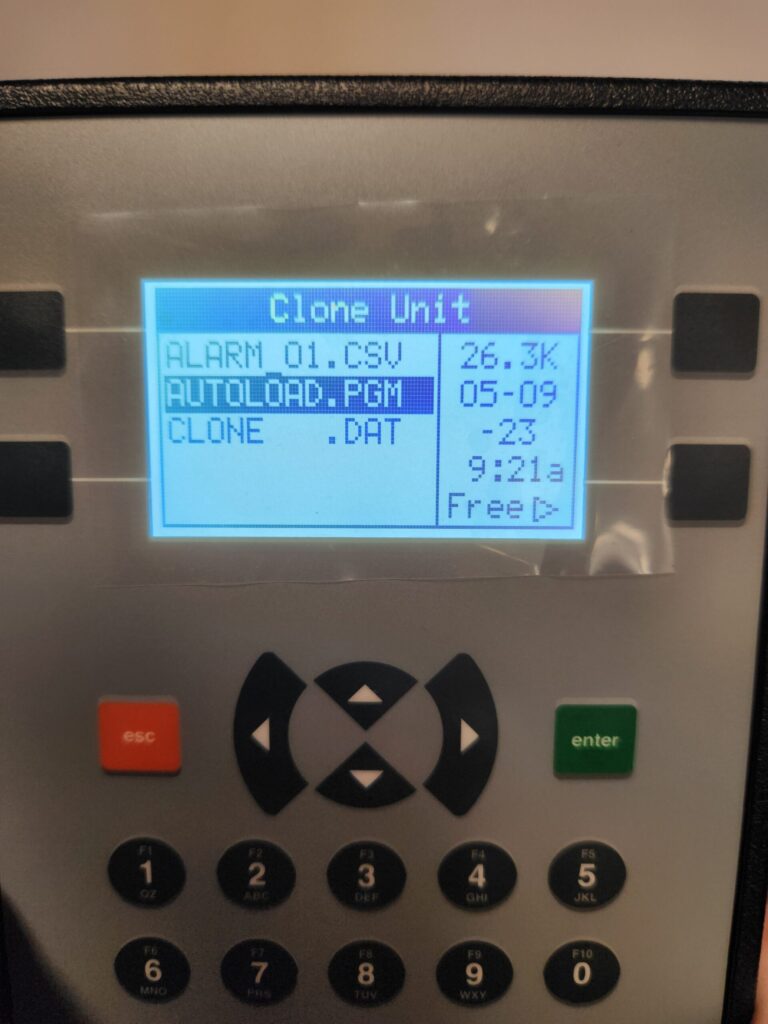
- Hover over “Autoload.PGM” and press F2.
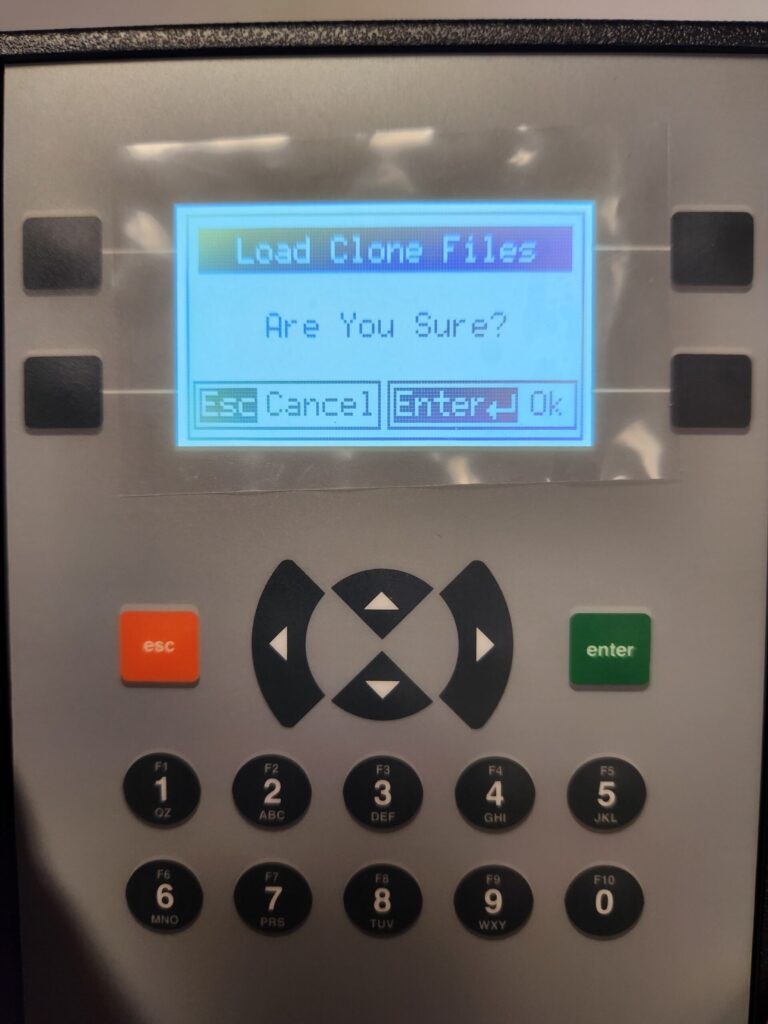
- A new screen should pop up that says “Load Clone Files” across the top. Press enter to confirm. The program and settings will be loaded from the card to the RAM, then the unit will restart.
- Confirm that the settings are all correct.
- If there is a problem with the battery backup, next time the unit is off overnight the unit may need to retrieve the program from the card again. It should do so automatically with the changes made to the “AutoLoad” and “AutoRun” settings.
- Follow instructions in the controller’s user manual for battery replacement if problem persists.